Use the Internal page to add custom Frameworks and KPIs.
Create Internal Frameworks
The Internal page is blank until you create a Framework. Once you create a Framework, the page will refresh with a KPI grid, and the page will default to the Framework created. Complete the following steps:
-
Select the New button to display the New Internal Framework slide-out panel.
-
Enter a Framework name. The name must be unique across both internal and external Frameworks and Framework KPIs.
-
Select the Save button.
When a new internal Framework is created, a parent KPI is created automatically with the following properties:
| Property | Value |
|---|---|
| KPI Name | The internal Framework name. This value is read-only. |
| Description | <Framework Name> Top Member. This field is read-only. |
| Parent | No value. This field is read-only. |
| Unit Type | Numerical |
| Unit | No value |
| Is Material | True |
Internal Framework Filters

Framework
Use the Frameworks filter drop-down menu to select an internal Framework. When a new Framework is created, the filter will default to that Framework. Framework KPIs will not display in the grid unless you have selected a Framework from this filter.
Materiality
The default Materiality is Both. To display only Material KPIs, select True from the drop-down menu. To display only Not Material KPIs, select False from the drop-down menu.
Add Internal KPIs
-
From the Framework drop-down menu, select a Framework.
-
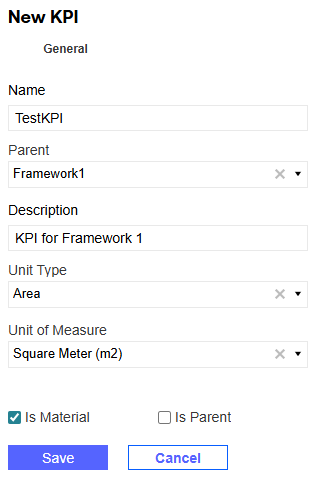
Select the New button to display the New KPI slide-out panel.
-
Fill in all required fields.
Field Description Name The KPI name must be unique across both internal and external frameworks.
If a KPI is a parent level member, the Name field cannot be edited once saved.
Parent The Parent drop-down menu displays all KPIs where the Is Parent property is set to True. Description Enter a KPI description. Unit Type From the Unit Type drop-down menu, select a unit type.
The Unit Type drop-down menu selection filters down the available options in the Unit of Measure drop-down menu. For example, if a unit type of Area is chosen from the Unit Type drop-down menu, the Unit of Measure drop-down menu will only display units in the Area unit type.
Unit of Measure From the Unit of Measure drop-down menu, select a unit of measure.
If you select a value from the Unit Type drop-down menu and no value is selected from the Unit of Measure drop-down menu, the Unit of Measure drop-down menu will populate with the corresponding unit types.
If the Unit Type selected does not require a Unit of Measure, like Narrative or Table, the Unit of Measure drop-down menu will display No Data.
Is Material This checkbox is selected by default. To make a KPI Not Material, deselect the Is Material checkbox. Is Parent This checkbox is deselected by default. To make a KPI a parent level member, select the Is Parent checkbox.
If the KPI is a parent level member with children, this property cannot be edited once saved.
-
Select the Save button.
 To remove a KPI, select the Delete icon.
NOTE: The KPI cannot be deleted if it is a parent with at least one child member.
Import Internal Framework KPIs

Use the Download and Import icons to download a KPI entry template and bulk import KPI data.
To import KPI data, complete the following steps:
-
Select the Download icon. Fill in all required template columns.
Column Description Name Enter a name for the KPI. Parent The Parent drop-down menu displays all KPIs in the Framework where the Is Parent property is set to True. Description Enter a description for the KPI. Unit Type Select a unit type. Unit of Measure A unit type must be selected before the unit of measure. The Unit of Measure drop-down menu only displays units that match the selected unit type. Is Parent The Is Parent drop-down menu enables you to mark a KPI as a parent level member. You can add children to a new parent in the same file.
-
When you complete the template, select the Import icon.
-
In the File Upload window, select the BROWSE button to open File Explorer.
-
Select the template and select the Open button.
-
Select the Upload button.
-
The Spreadsheet Import Report slide-out panel displays showing the number of entries added to the internal factors grid. Review the entries and select the Close button. If there are validation errors, the Spreadsheet Import Report slide-out panel displays a compiled list of errors.
NOTE: All imported KPIs are material by default.

